Distributed Mode
The maximum load that can be generated by a single player instance is limited by the host it is executed on. If you try to inject more VU (Virtual Users) that the host can handle, the results will be irrelevant because the host will be the bottleneck, not the server. If you are not sure whether the host or the tested server is the bottleneck, try the distributed mode !
Ideally, you need multiple hosts to use the distributed mode. One of your host will be the manager and the others will be the remote injectors.
Launch remote injectors
Install the binary of the player on each host, and then
on each host that will be an remote injector, execute this command to run the player in daemon mode:
$ player daemon --listen-addr 192.168.0.10:8080
INFO[0000] Maximum number of open file descriptors: 65536
player is now waiting for orders coming from the manager.
Of course, don't forget to replace the IP address 192.168.0.10 by the host IP and choose an available port to make the injector listen on it.
Launch the manager in batch mode
You just need a YAML playbook, the IP addresses (or hostnames) and the listening ports of the remote injectors. Then, launch the distributed load test this way:
$ player batch --injectors injector1:8000,192.168.0.10:8080 --script /path/to/script.yml
Thats's all ! By default, the results will be stored in your current directory but you can specify another localtion with the --repository-dir /path/for/results option.
When all the remote injectors have finished their job, partial results are gathered and merged by the manager.
Launch the manager with its web interface
There is another way to launch the manager ! Instead of using the batch mode, you can use the manage mode. This mode makes the manager creates a Web interface you can connect to and manage the remote injectors. To launch the web interface, just execute this command:
$ player manage
INFO[0000] Start manager mode on this address: 127.0.0.1:8000
By default the web interface is available on port 8000, but you can specify another IP and port with the --listen-addr option.
Once you enter the web interface, you will notice that you have to give the IP address (or the hostname) and the ports of the remote injectors, but you can also specify their location using the --injectors option on the command line.
Here is a screenshot of the web interface. You can see that one remote injector is available, another one is specified but we did not connect to it yet. The <Add Injector> button adds more line to describe more injectors.
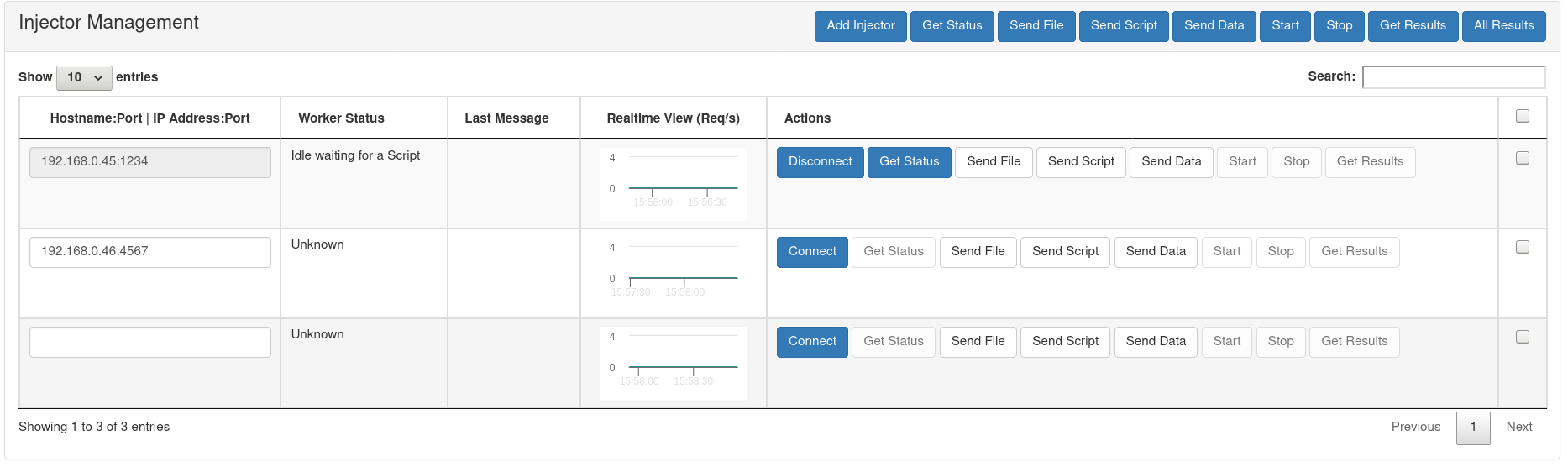
Once your injectors are connected, you select the ones you want to use - usually you want them all ! - so check the upper checkbox and then click on the upper <Send Script> button to send them the script they must play. Then click on the <Start> button and wait...
There is a realtime animation during the play and when the test ends, just wait until a popup appears saying the results have been received and processed. Click on the given link and voilà !